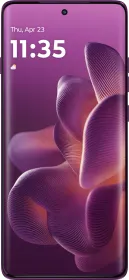


Tech Giants like Xiaomi, Samsung, Realme, OnePlus, and Motorola keep launching new smartphones now and then. Many times we see a new smartphone or a tablet and love it so much that we decide to replace our existing device with a new one. While buying and setting up a new smartphone/tablet is simple, it is mandatory to wipe out your old device to keep your data from landing in the wrong hands. The question remains what should be done with the old phone? You can give it away, trade it for a new one, put it up for sale, or recycle it but whatever you do, make sure that personal data is wiped clean.
Leaving personal details on your old device might expose you to data breaches and other threats. In the case of an Android device, you need to follow the given procedures to wipe out your smartphone, mind you a simple ‘Factory Reset’ is not enough.
Why is Factory Reset not enough?
According to some studies, it is possible to recover photos, emails, text, and other documents from a reset Android device. When you delete a file from your phone memory, SD Card, or computer hard disk for that matter, the file isn’t removed. Permanent data erasure goes beyond factory reset.
The main issue is with the flash memory which restricts the number of times you can overwrite a block of memory in a limited time. Due to this, when a person gives a command to factory reset his phone, the data gets deleted without overwriting which leads longer life for the storage.
Using tools, hackers can scan the wiped phones for hard drives that had been locally empty but can still recover data. This means factory reset does wipe the data but due to flash memory, it isn’t being wiped completely.
Encrypting your phone before you do the factory reset will solve this problem.
Process to Get an Android Device Ready for Replacement
#1- Backing up Data and basic File Deletion

The first step is backing all your data up safely so that you can access it anytime you want in the future. Enabling Google Drive backup automatically ensures that device settings, apps, app data, SMS, call history, and contacts are backed up and synchronized with Google Drive. Otherwise, you will have to manually back up your data. Here are the steps to manually back up data.
- In the case of email, there’s nothing much to worry about. You can easily recreate it on your new device. Most email setups keep copies of downloaded emails on the server. Check it by logging into your email on another device to confirm backups to the server.
- Google has a record of all the apps you have bought from the Play Store. So if you are opting for another Android device, you can download all the apps again on your new phone. Google can also help sync apps to your account. Enable it by going to Settings >> Accounts >> Enable Automatically Sync Data. Then move to Settings >> System >> Backup >> Enable Backup to Google Drive. Some apps have cloud storage while others like WhatsApp rely on Google. In every scenario, all app data will be backed up.
- Contacts are one of the most important pieces of information on anyone’s smartphone. Backing contacts up is very crucial. With Google, it is very simple to back up contacts. Backup your contacts to Google Contacts and they will go with you wherever you go. You can set it up by going to Settings >> Accounts >> Google Account >> Account Sync >> Enable Contacts.
- Photos, videos, and music make up the memories you create. There are various ways to back these up but the most effective way is to connect your PC or Mac using a USB cable and transfer files to the system. A folder called DCIM and music files in a folder called Music.
- Text messages, call logs, system settings, calendar events, playlists, browser bookmarks, etc can be backed up using third-party apps like My Backup Pro.
After you have backed up your files, you can perform basic deletion.
#2- Encrypt Your Data

Encryption means rendering your data in an unreadable or scrambled format, which means that even if someone tries to restore your data, they won’t be able to access it. It is essential to ensure that if a skilled hacker manages to dig out your erased data, they won’t be able to make any sense of it. Anyone attempting to access the encrypted data will need a special key to decrypt it, which the hacker won’t have.
This is a step which most of the Android users don’t know about. These users rarely encrypt their phone data. These days, some Android phones come with encryption enabled by default. Android 6.0 and above have encryption for data enabled. To enable encryption follow these steps-
- Go to Settings >> Security >> Encryption >> Encrypt Phone.
- Tap “Encrypt phone” or “Encrypt tablet” and you will be asked to plug in your phone to charge while encryption is going on. Make sure that the smartphone doesn’t power off which might lead to errors.
- Set a new PIN which will be required to access your encrypted files.
#3- Overwrite With Junk Data
Overwrite your encrypted data with junk data to ensure no one can access it. Even highly skilled hackers can’t recover such files. Overwriting encrypted data with junk data assures you that your data is now unrecoverable.
To do this load your device with large files until storage is filled due and then erase these files or use apps like Shreddit from the Play Store.
#4- Removing SIM & Memory Cards, Accounts

Remove all your accounts configured on your device before factory resetting. For most phones, go to Settings >> Accounts >> Gmail Account >> Remove Account. Do the same for every app and service you are signed into.
Remove your physical SIM Card and memory card. To remove the memory card, power down the device and then eject it.
#5- Factory Reset

The final step is here. We are now ready to perform a factory reset. Factory resetting erases all the data on your device and returns it to its original out-of-the-box state as it was from the factory. The easiest way to factory reset a device is through the settings menu. On most phones, go to Settings >> General Management >> Reset >> Factory Data Reset.
This will bring you to the end of wiping your phone off.
You can follow Smartprix on Twitter, Facebook, Instagram, and Google News. Visit smartprix.com for the most recent news, reviews, and tech guides.