
How to Customize the Side Key on Your Samsung Smartphone

Main Image
  • Like
  • Comment
  • Share

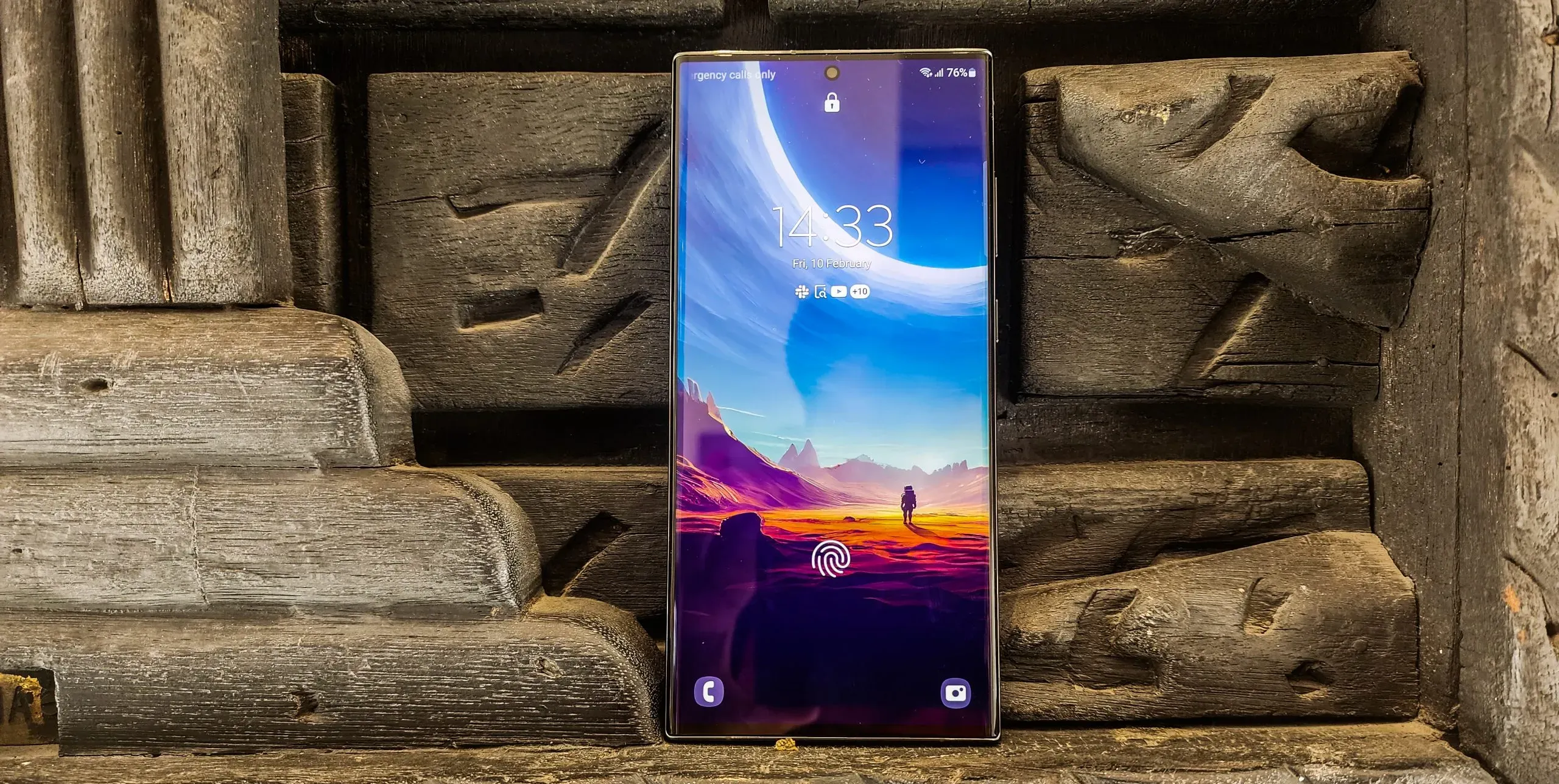
Samsung’s latest smartphones, starting with the brand’s Note 10 Series come with a multi-function “Side Key” that has replaced the previously dedicated Bixby Button. Bixby Button is known as a Power Button but it can have other functions like double-press and long-press actions. The Side key comes mapped to multiple actions-

  • Short press and hold turns the screen on or off
  • Double press triggers Bixby
  • To access the power menu, press the side key and volume down simultaneously.

Such multiple mapping can get confusing for those who are not habituated to using Bixby. Thankfully Samsung allows the user to remap the Side Key to other actions. Setting up the Side Key on your Samsung Device at your convenience is a very simple process.

ALSO READ: How to Protect Yourself from Deepfake AI Scam Calls

ALSO READ: How to Deactivate Your Threads Account in a Few Simple Steps

Changing the Side Key Action on your Samsung Device

If you don’t use Samsung’s Bixby Voice assistant on your smartphone, it is best to remap the press-and-hold function of the Side Key to bring up the power off menu. Just follow these simple steps-

  • Open the Settings app on your Samsung Device.
  • Scroll down, go to Advanced features, and select Side Key.
  • Under Press and Hold, select the Power off menu radio button.

Now when you want to access the power off the menu, simply press and hold the Side Key, and it’ll present you with the options to turn off or restart your phone, launch in Safe Mode, and use Emergency Mode.

Remapping Side Key’s Double-Press Action

The Side Key is not limited to press and hold but also supports the double press function. You can map it to a few different actions. If you click a lot of pictures, you can assign the double-press function to launch the Camera App. If you use Samsung Pay, assign it to Samsung Wallet. If there is an app you need to access frequently, you can map the double-press function to open it.

Just follow these simple steps-

  • Launch Settings.
  • Go to Advanced Features and then Side Key.
  • Toggle on the switch for the Double Press if it’s disabled.
  • Based on your requirement select the action you wish to perform with the double press of the Side Key.
  • If you wish to map the double-press function to open an app, select Open app, tap on the gear icon to its right, and select the app from the following page.

Once the side key is mapped, double-press it and it will trigger the action you have assigned to it.

By allowing you to set the function of the side key on your own, Samsung allows you to get more out of the button on your phone. It makes sure that the Side Key is not left unused if you don’t find the default action useful.

You can follow Smartprix on TwitterFacebookInstagram, and Google News. Visit smartprix.com for the most recent newsreviews, and tech guides

Shivangi AgarwalShivangi Agarwal
Shivangi is a tech writer at Smartprix, where she covers consumer technology news with a focus on smartphones, wearables, laptops, and the evolving world of OTT streaming. Since joining the team in August 2021, she has written over 120 in-depth reviews, comparisons, and buying guides aimed at helping readers navigate the ever-changing tech landscape.

With a strong foundation in English literature and education, Shivangi brings clarity, insight, and a reader-first approach to every story. Her expertise lies in breaking down complex features into accessible, practical insights—whether she’s reviewing the latest smartphone or exploring trends in infotainment.

Shivangi holds a B.A. (Hons.) and M.A. in English, along with a B.Ed in English and Social Studies. She is based in Faridabad, India. You can follow her work on Smartprix or connect with her for tech-related queries.

Related Articles

ImageFire-Boltt is Launching ‘boltt’ budget Smartphones on Flipkart to Take on Redmi and Ai+

Fire-Boltt built a huge user base in India by selling affordable smartwatches. Now, it is moving into smartphones. Today, Fire-Boltt announced boltt, a new Made-in-India smartphone brand, a development Smartprix exclusively revealed earlier this month. The first two models, one 4G and one 5G, will launch in early August and target the ₹10,000-₹15,000 price range. …

ImageHow To Use Bixby Button To Trigger Google Assistant On Samsung Phones

Samsung’s Bixby Key has been a vestigial extra for many consumers and it often gets in the way of doing things. Samsung earlier only allowed users to disable the key, but with the new OTA update for Bixby app, the option to remap the dedicated Bixby button has been added. However, this comes with some limitations, the …

ImageSamsung Bixby Home Is Showing Targeted Ads: How to turn these off

Looks like Samsung is rolling out ads in its Bixby home interface. These ads show up as a Bixby card at the top of Bixby home and suggest recommended apps based on user interest. We first spotted these advertisements on Galaxy Note 9 running One UI. At the time of writing, we are not sure …

ImageSamsung Galaxy M47 Launching in India on June 29: Check Key Specifications

Samsung has officially confirmed that the Galaxy M47 will debut in India on June 29, 2026. Ahead of the launch, the company has also revealed several key specifications on the Amazon landing page. Let’s take a look at what the Galaxy M47 has to offer. Galaxy M47 Key Specifications To begin with, Samsung is equipping …

ImageSamsung Galaxy Z Fold8 and Z Fold8 Ultra Dummy Units Leak in First Side-by-Side Photos

Fresh photos of Galaxy Z Fold8 and Galaxy Z Fold8 Ultra dummy units have surfaced online, giving us our first real-world comparison of Samsung’s upcoming foldables. The images were shared on Korean forums and later highlighted by reliable tipster Ice Universe, showing both devices side by side. Samsung is taking two very different approaches this …

Discuss

Be the first to leave a comment.