


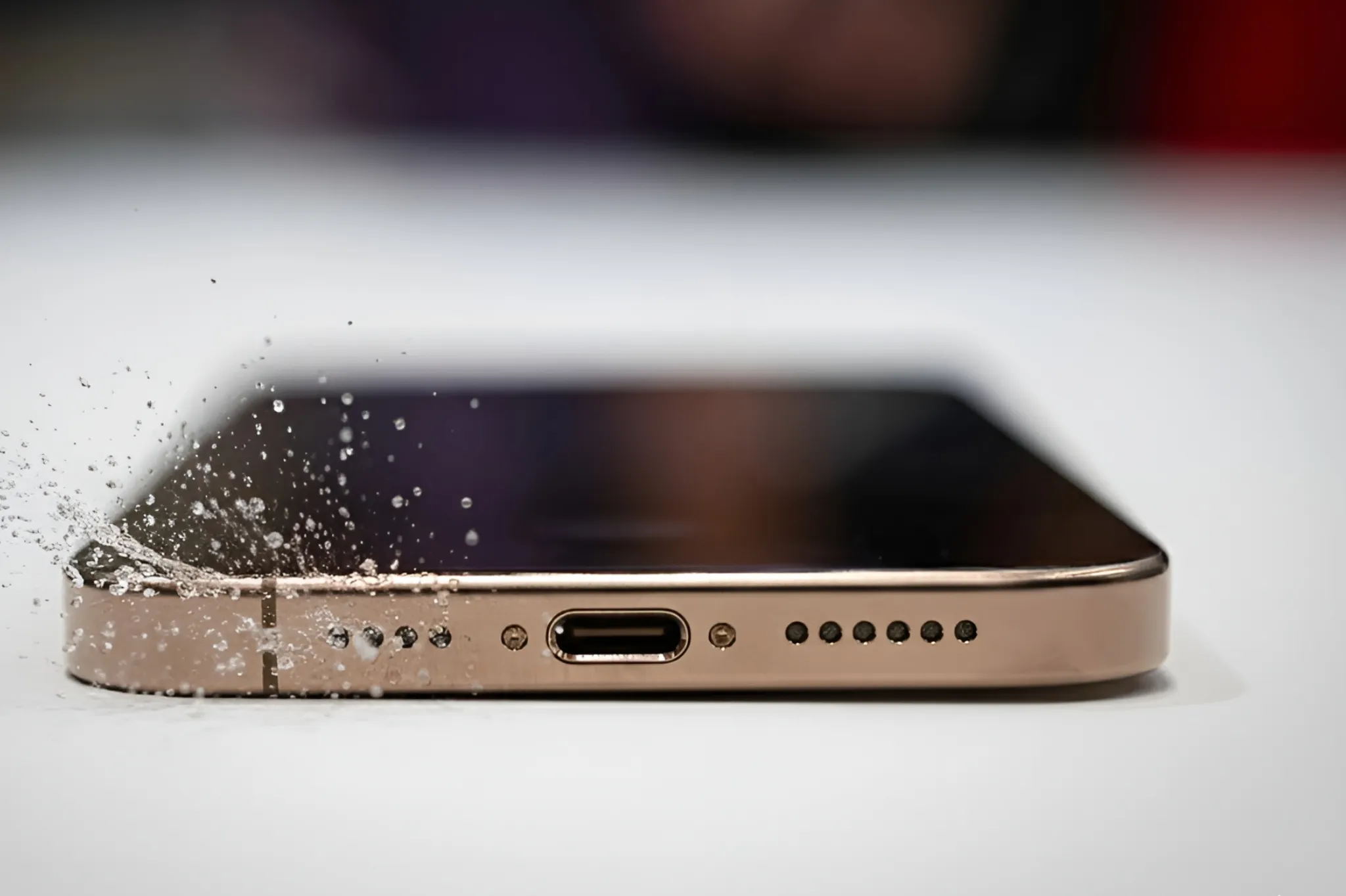
It’s monsoon season, and if you’ve been caught in the rain, chances are your iPhone’s speakers sound muffled. Don’t panic. Apple doesn’t ship a native “water eject” tool like the Apple Watch, but the community has built a clever workaround: a Siri Shortcut that uses sound frequencies to push water out of the speakers.
We tested the shortcut, and here’s everything you need to know to use it safely.
Why Your iPhone Speakers Sound Weird After Rain?
Unlike waterproofing in smartwatches, your iPhone’s speaker grilles are still vulnerable to tiny droplets of water. Even though most modern iPhones are IP68-certified, water stuck inside the speaker cavity can distort sound. Drying alone doesn’t always work—sometimes you need a little sonic help.
That’s where the Water Eject Shortcut comes in.
Step-by-Step Guide: How to Use the Water Eject Shortcut
The most popular solution is a Siri Shortcut designed specifically for water ejection. Apple doesn’t make it, but it’s safe when sourced from trusted repositories.
Step 1: Add the Water Eject Shortcut
- Open the link to the shortcut in Safari: Water Eject Shortcut.
- Tap Get Shortcut.
- This will open the Shortcuts app on your iPhone.
- Tap Add Shortcut (blue button).
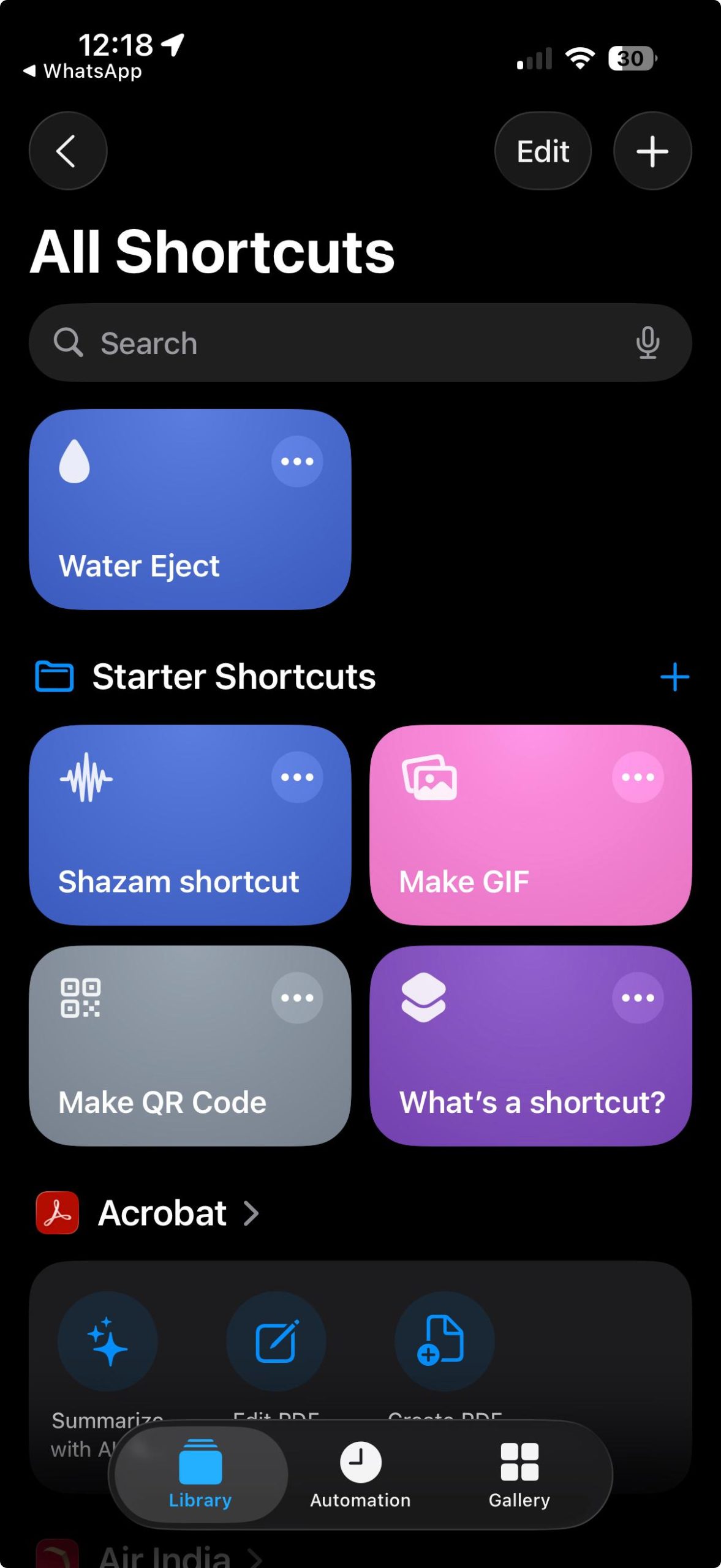
- You’ll now see the shortcut in your Shortcuts Library under the name Water Eject.

Step 2: Locate the Shortcut
- Open the Shortcuts app.
- Go to the Library tab at the bottom left.
- Look for the shortcut tile named Water Eject with a water droplet icon.
Step 3: Start the Water Eject Process
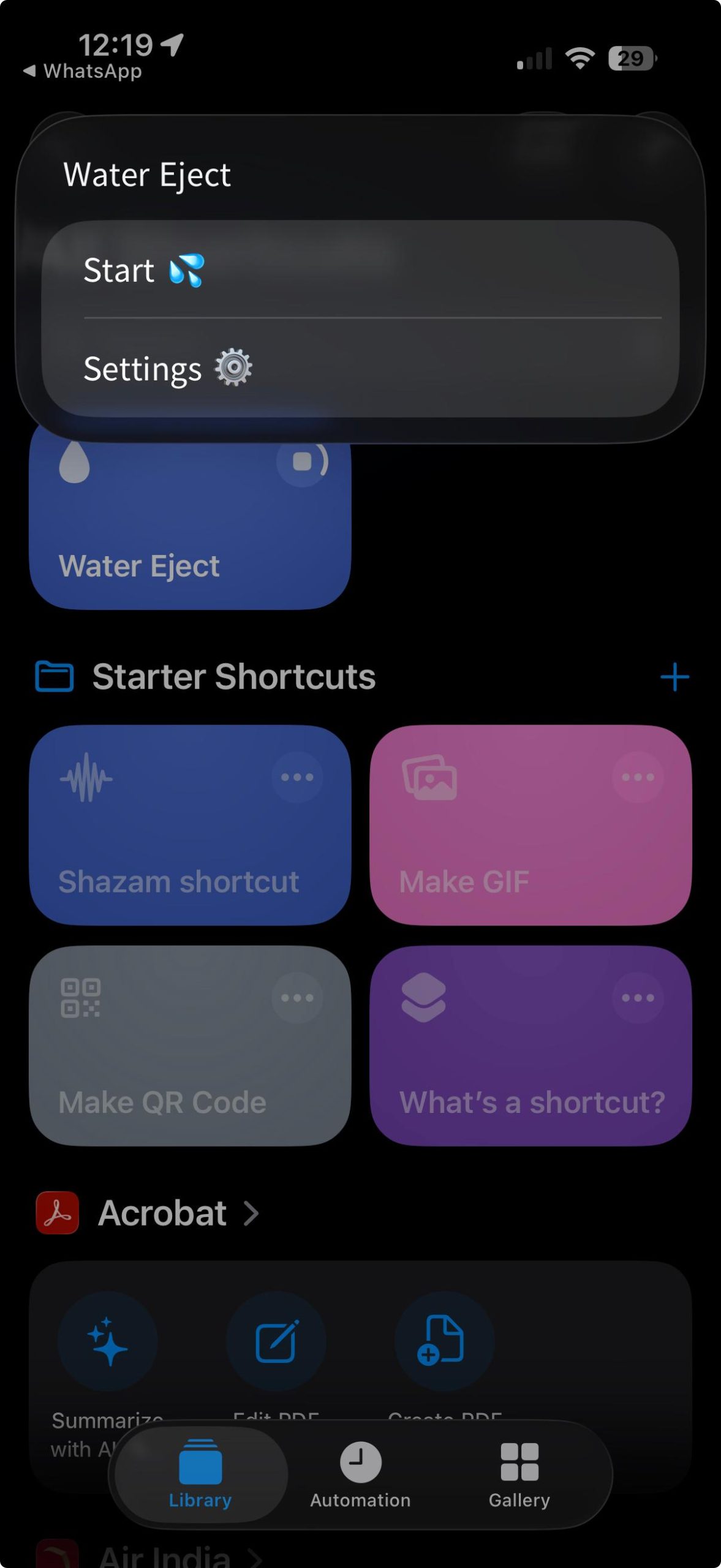
- Tap the Water Eject shortcut.
- A menu will appear:
- Start 💦 → Begins the water removal process.
- Settings ⚙️ → Let’s you configure intensity and preferences.
Step 4: Choose Intensity Level
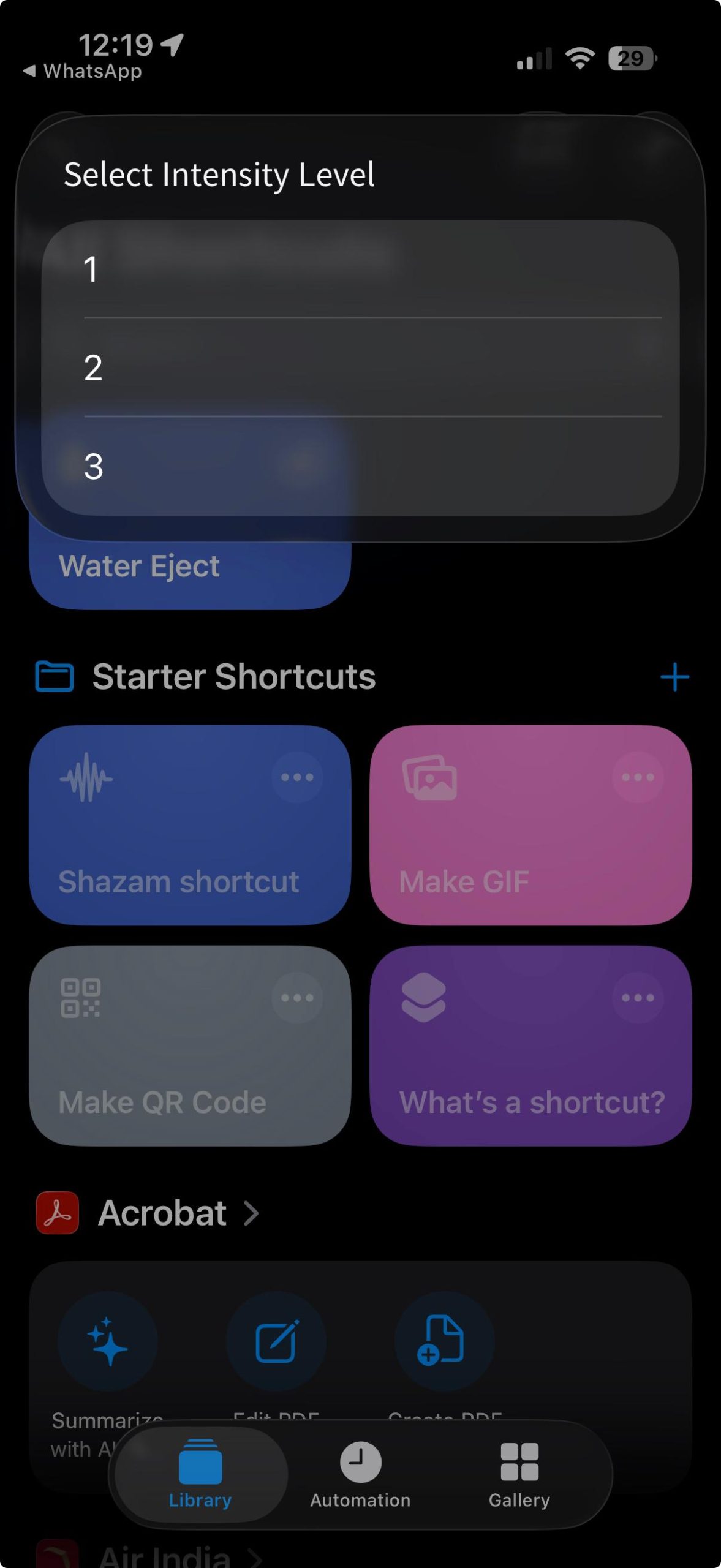
- If you tap Start, you’ll be asked to select an Intensity Level (1, 2, or 3).
- Level 1 = Gentle sound frequency (light water removal).
- Level 2 = Moderate sound frequency (recommended for most cases).
- Level 3 = Strongest sound frequency (for stubborn water).
- Tap your preferred level, and your iPhone will play a sound that pushes water out of the speakers.
Step 5: Confirm Water Removal
- Hold your iPhone so the speaker grills face downward.
- You’ll notice small droplets of water ejecting or the muffled sound clearing up.
- You can repeat the process if needed, starting from Step 3.
Step 6: Extra Tips
If your iPhone fell into water, also dry the charging port and wipe the phone before charging.
You can also activate it hands-free with Siri by saying:
“Hey Siri, Water Eject.”
Avoid running the shortcut at maximum intensity too many times in a row.
Method 2: Use a Dedicated App
If Shortcuts aren’t your thing, the App Store has standalone apps that do the same job.
- try Water Eject by xNeat app. It is a free, one-tap interface, no fuss.
- You can also try the Water Eject Shortcut App by Firebolt Online, as it offers extra features, but includes ads and optional in-app purchases.
These apps rely on the same principle, pushing water out using carefully tuned sound frequencies—but make it feel more like an official tool.
What NOT to Do
- Do NOT use rice: This is a myth. Tiny rice particles can get into the ports and speakers, causing more harm.
- Do NOT use a hairdryer or compressed air: The heat can damage internal components, and the force of the air can push water deeper into the phone.
- Do NOT insert anything into the speaker grilles or charging port, like a cotton swab or paperclip. This can cause permanent damage.
FAQ
1. Is the Water Eject Shortcut safe for my iPhone?
Yes. It only plays a specific sound frequency; it doesn’t alter system files or damage hardware.
2. Can it fix permanent water damage?
No. If water has entered internal components, you need professional service.
3. Does Apple officially support this?
No. This is a community solution, but widely used by iPhone users worldwide.
4. Does it work on all iPhones?
It works best on iPhones running iOS 14 and above with the Shortcuts app installed.
Our take
Apple gave the Apple Watch an official Water Lock eject feature years ago, so why not the iPhone? Until Cupertino decides to build it in, this Shortcut is the closest thing we’ve got.
And with the iPhone 17 launch just around the corner, it feels like the perfect time for Apple to address this finally. If the company can add satellite connectivity and AI-driven camera smarts, why not a simple “water eject” toggle in Control Center?
Until then, this Shortcut remains the unofficial fix, born not from Apple’s labs but from the creativity of the iPhone community.
You can follow Smartprix on Twitter, Facebook, Instagram, and Google News. Visit smartprix.com for the latest tech and auto news, reviews, and guides.