



Work from home has made most of us stick to a computer screen for a major share of our day. And while our eyes and workflow are already locked onto the big screen, you might not feel like using a smaller screen phone always. This is true for the purposes of video calls as well. Now, one of the commonly used tools for video chats is Whatsapp, although currently, the WhatsApp Desktop app only supports one-to-one voice or video calls. There is no provision for group calls at the moment. However, there are always workarounds and here we are with the easiest ways to do WhatsApp voice and video calls on both Windows and Mac platforms.
The first way is through the WhatsApp app for desktop (ideal for both Windows PCs and Macs) and the other way is through Android emulators. Let’s discuss the two ways in detail.
How to make WhatsApp voice and video calls using WhatsApp desktop app for Mac and PC
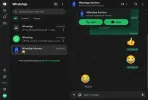
As already mentioned, Facebook-owned WhatsApp lets you officially do audio and video calls through its desktop app. The only limitation of this method is that it supports only one-to-one end-to-end encrypted calling at present. This should work with computers running on Windows 8 or higher and Mac OS X 10.10 or higher. The system must be equipped with a camera, microphone, and audio output. Additionally, users must have active WhatsApp account on their mobile phones.
ALSO READ: WhatsApp Data Privacy: Should you be concerned and consider alternatives?
Once you have all those prerequisites met, you can follow the steps below for doing WhatsApp voice and video calls through a PC or Mac:

- Download the WhatsApp desktop app from the official website and install it in your system. You can click here to download the app for Windows or Mac.
- Open the newly installed app and a QR code will appear that needs to be scanned through your mobile phone.
- To find QR, open WhatsApp on mobile > click on three dots > WhatsApp Web. iOS users can find the option on the Setting page. Scan your phone on the desktop’s QR code to log in.
- Select your WhatsApp contact whom you want to reach and open the chat.
- Find voice and video call icons on the right upper corner of the screen within the chat.
- Tap either of the two icons and allow mic and camera permissions to place your WhatsApp voice or video call.
- A small window popup will open on the screen depicting call status, mute button, and other options.
The WhatsApp desktop app will run until you have an active internet connection on both your smartphone and PC. You can maximize, minimize, and drag the popup window to anywhere on the screen.
Now, since the official WhatsApp Desktop solution lacks the group voice or video call feature, we have to use the following method as a workaround.
How to make WhatsApp Group Voice and Video Calls using Android Emulator
There are many emulators online that simulate the Android experience on PCs and Macs. You can test any app (Android-exclusive or otherwise) using this method. That includes WhatsApp. So by running WhatsApp mobile on a PC or Mac, you will be able to do group voice or video chats as well.
ALSO READ: COVID-19 Vaccine Tracking solutions: How to get open vaccination slots
But here too there is a limitation that by logging in to WhatsApp on the Android emulator, you’d be forced to sign off from the app on your mobile phone. This is because WhatsApp lets you run one account with one number on one device only.
Anyways, some of the major Android emulators you can try for this purpose are BlueStacks, LD Player, MEmu, Nox, GameLoop, PrimeOS, Android Studio, etc.

And here are the steps for doing WhatsApp audio and video calls through a PC using an Android emulator:
- Download and install one of the aforementioned emulators to your Windows PC or Mac.
- Open the emulator software and log in to Playstore with a Google account and download WhatsApp.
- Once WhatsApp installation is complete, login within the app with a mobile number to get started.
- Bang on! The rest process is exactly the same as you use WhatsApp on your mobile phone.
- Find a chat and click on the voice/video icon.
- Your PC may ask for permission to microphone and webcam before the call connection.
So, have you tried any of the methods discussed above and if yes, how was your experience? Let us know down in the comments.