


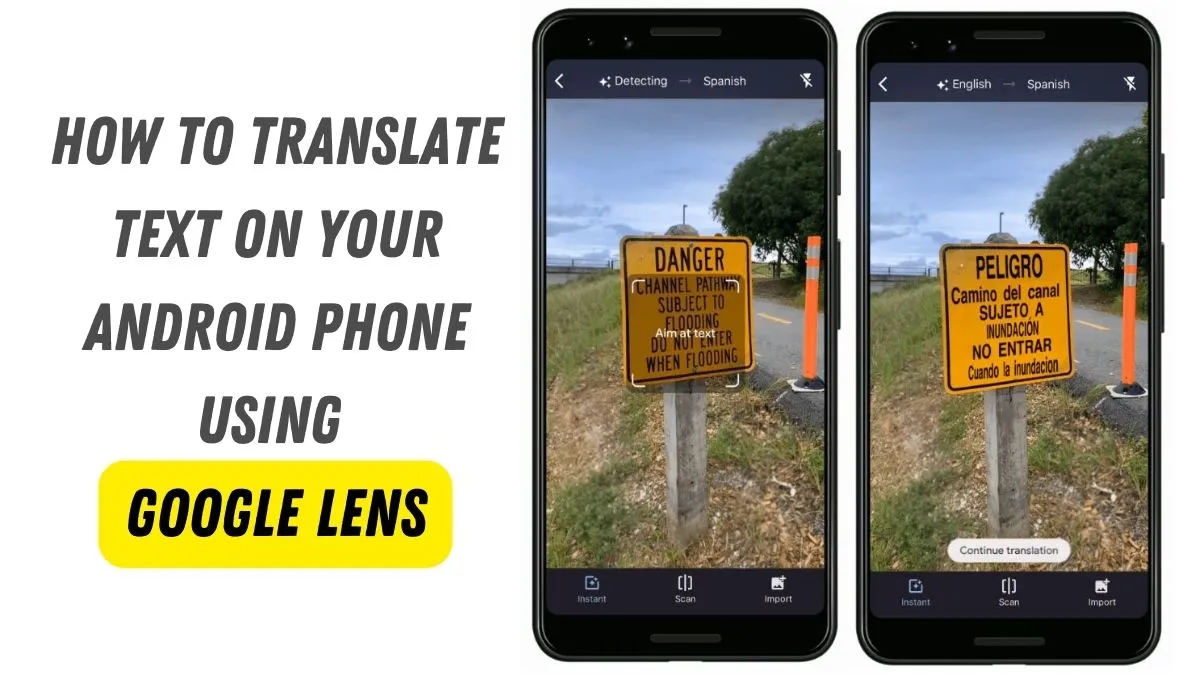
Your Android smartphone is more powerful than you can imagine. With the advent of Artificial Intelligence (AI), the phone’s capabilities have leaps and bounds. One of the features that Android smartphones have is the Google Lens which lets you do a myriad of functions thanks to AI. One such function is translating in real-time.
You can translate any language both from and to. You can walk into a country where you don’t speak a foreign language and yet use the Translate feature to get by. Google Lens’ Translate feature is great but how do you use it? Well, let’s find out.
How to translate text on your Android phone using Google Lens?
It’s quite simple by the way. Here’s how you can proceed with translating any kind of text on your Android phone using Google Lens.
Step #1: First up, open Google Lens on your phone. If you don’t have it, simply get it from the Google Play Store as it is available freely.
Step #2: Next up, launch the app.
Step #3: If a prompt appears, allow the use of ‘camera’ because, without it, you won’t be able to use the Translate feature.
Step #4: You need to select ‘Translate’ from the available options.

Step #5: Next up, when the AI camera starts, you need to place the viewfinder on the text you want to translate similarly to how you would take a snap of a paper.
Step #6: The AI should be able to recognize the language in the text and translate it into the language you know, say Arabic to English, in real-time. You can even change the language in real time.
Alternatively
Step #1: You can snap a photo of the text that should be saved in your phone’s gallery.
Step #2: Find the photo and open it.
Step #3: You will spot a Google Lens icon on the top-right corner so click on it.
Step #4: Select the ‘Translate’ feature and bingo, the text will be translated into the default language.
Step #5: Again, you can change the language of the output as you please.










my photos show the lens option (across the bottom) when I tap it, lens no longer recognizes the language. when I choose a language, it highlights the text but no longer translates it. google lens does not appear in any of my app lists. I have no icon for google lens. I have it but I don’t have it. Everything worked fine a couple weeks ago. Now its useless.