


TL; DR
- Six months with ColorOS 16 made me appreciate the little things, from Flux Home Screen and smooth animations to the features I now use without thinking.
- Mind Space, MindPilot, AI Bill Manager, and the Gallery’s editing tools gave me new ways to manage information, keep track of expenses, and fix photos.
- With ColorOS 17 on the way, I’m curious to see how OPPO builds on a software experience I’ve come to enjoy.
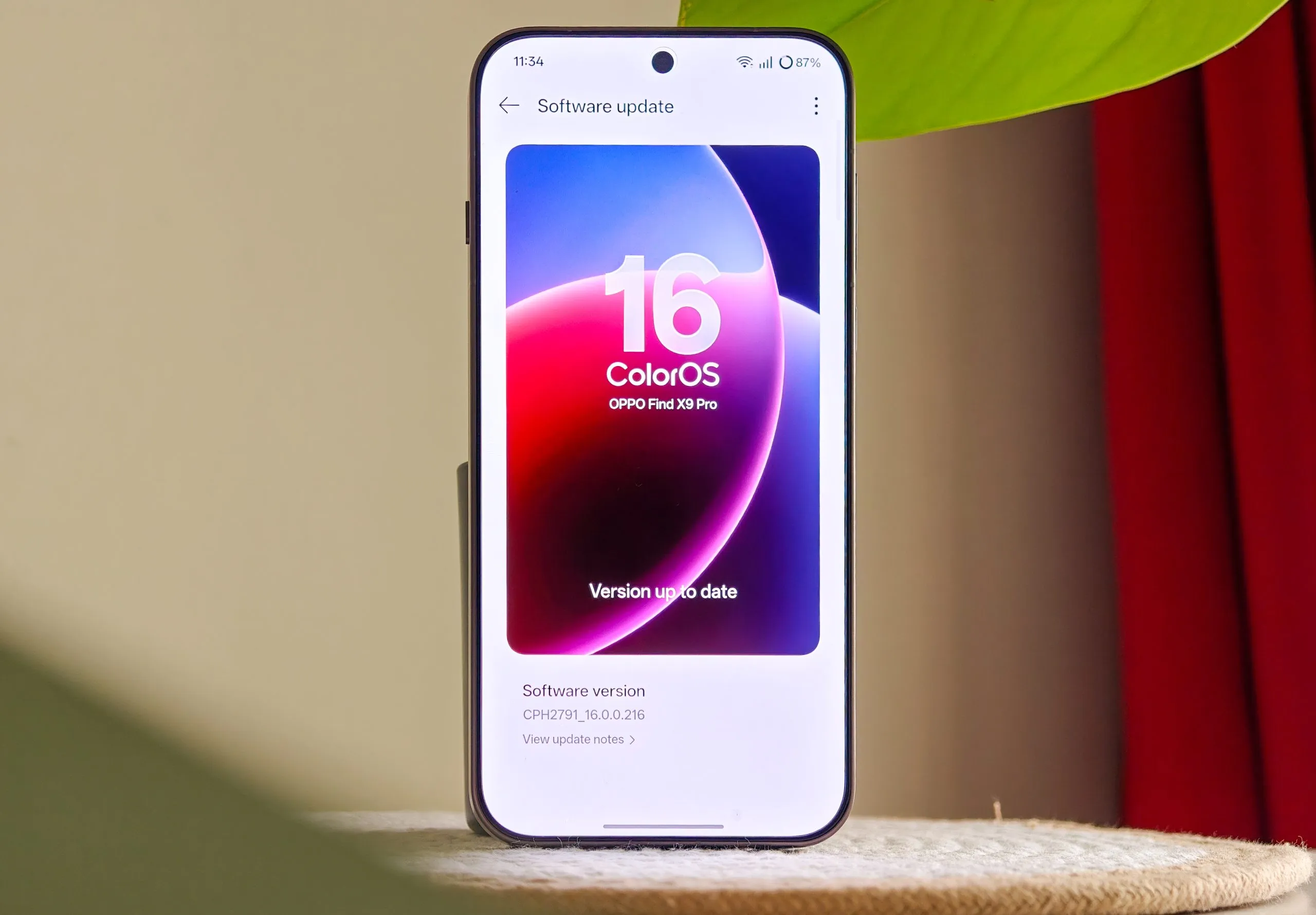
When I first started using OPPO’s ColorOS 16, the animations were among the first things I noticed. Apps opened smoothly, transitions looked stunning, and the interface had a visual consistency I really liked. I also spent a fair bit of time playing around with the customization options. There was plenty to personalize, and I could make the phone feel like my own effortlessly.
But using an operating system for six months is a different experience from spending a few days with it. Once the excitement of trying something new wears off, you start noticing the little things. The features you keep coming back to. The settings you change once and never touch again. The shortcuts that save you a few taps every day. That’s how my relationship with ColorOS 16 changed over time.
I also appreciate how often OPPO updates the software. Monthly updates have added new features and changed parts of the interface, so the experience hasn’t felt frozen since launch. Some additions caught my attention right away. Others took a while to find a place in my routine. Here’s how those six months went.
Month 1: Making ColorOS 16 Feel Like My Phone
The first month was all about getting comfortable with the software and setting things up the way I like them.
ColorOS has always been generous with customization, and Flux Home Screen gave me plenty to play with. I could resize app icons, change folder shapes, and rearrange the home screen until it felt right. I particularly liked how the adaptive Flux icons fit into the overall theme.
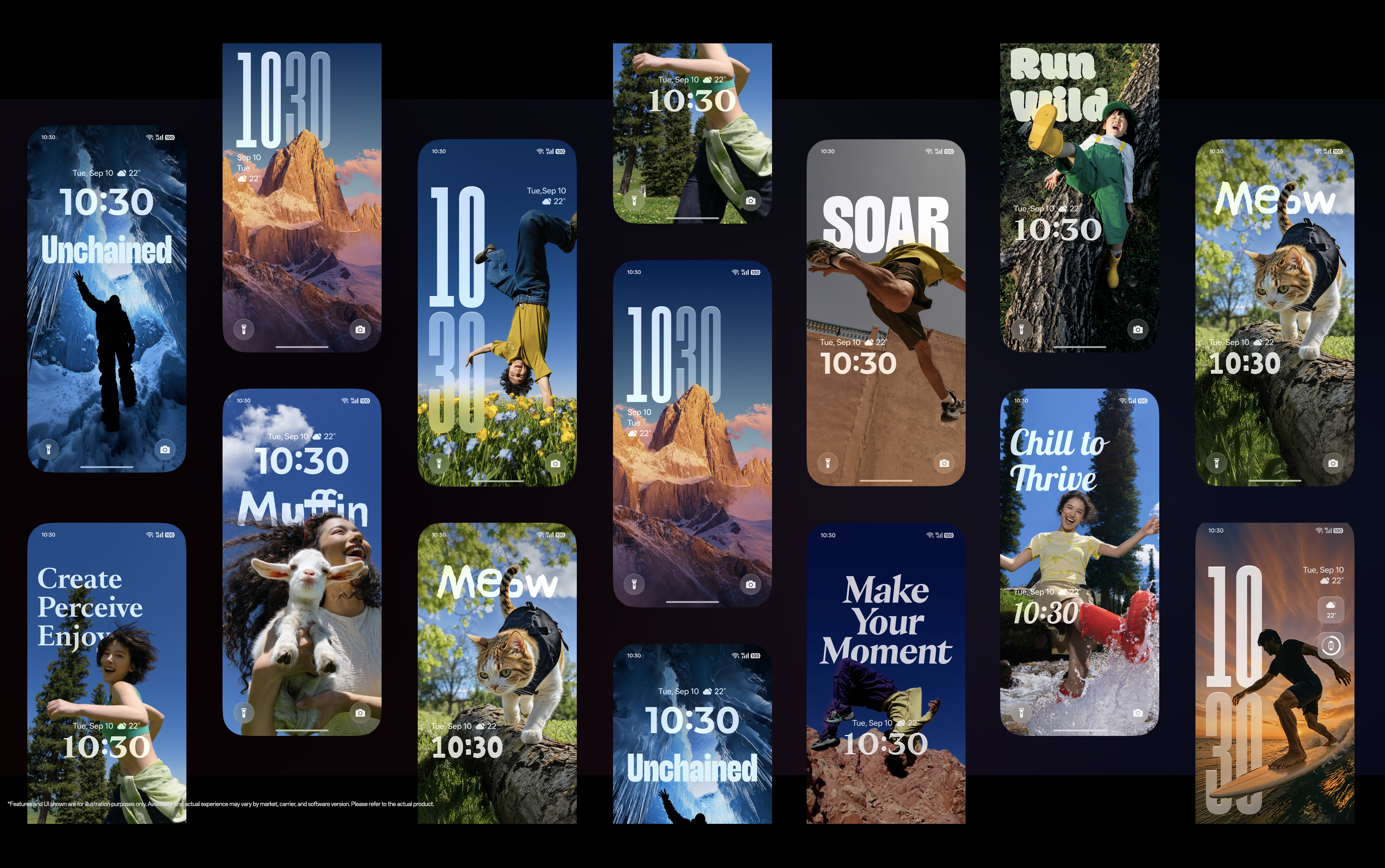
The lock screen was another area I spent time on. I like being able to change the clock style, fonts, widgets, and wallpaper without making the whole thing cluttered. I tend to prefer a clean layout, so having the freedom to keep things simple while still adding a personal touch was welcome.
Then there was the personalized Snap Key. At first, I saw it as another shortcut button. I needed some time to figure out which action made the most sense for me. Once I started using it to access Mind Space, though, I started to see the point. A physical button that takes me straight to a feature I use can be more convenient than digging through an app drawer.

I also spent time getting used to the usual ColorOS features, such as floating windows, split-screen multitasking (ColorOS’ implementation uses the 90:10 ratio which I really like), and the sidebar. These aren’t new ideas, but having them within easy reach is useful when I’m trying to get some work done.

By the end of the first month, I had settled into a layout I liked. I was still exploring the software, but I no longer felt the need to change something every time I picked up the phone.
Month 2: Finally, Somewhere to Put All Those Screenshots
I take a lot of screenshots. Some are things I want to buy, others contain information I might need later, and a few are simply things I don’t want to forget. The trouble starts when I need to find one of them.
My gallery can quickly turn into a long list of screenshots, photos, and random images. I might remember what I saved but have no idea where it is. That’s where Mind Space started making sense to me.
Mind Space gives me a dedicated place to save screenshots, text, images, and other content. I can use a three-finger swipe or press the Snap Key to save something while I’m using another app. It’s a simple way to keep information without interrupting what I’m doing, like taking a screenshot.

I can see the appeal when I’m planning a trip, too. Travel details, places I want to visit, and other bits of information can end up scattered across chats, browser tabs, and screenshots. Having a separate space for saved content makes it easier to keep track of those things.
What I like most is how little effort it takes. I don’t have to stop, open another app, and decide where something belongs. I can save it and carry on.
I still have to be mindful of what I save. But by the second month, I was starting to see it as more than a place to dump screenshots. It was a space I could return to when I needed something. And that became even more interesting once Mind Pilot entered the picture.
Month 3: Mind Pilot Made My Saved Content More Useful
Saving information is one thing. Finding something useful in it later is another. That’s what made Mind Pilot worth exploring. Built into Mind Space, it lets me interact with saved content through an AI assistant. It supports ChatGPT, Gemini, and Perplexity, so I can choose which model I want to use.
The idea is fairly simple. I save information in Mind Space (using Snap Key), then ask questions about it later. Instead of scrolling through a collection of screenshots, I can use a conversation to make sense of what I’ve saved.

For example, if I’ve collected information for a trip, Mind Space can keep those details together. Mind Pilot gives me another way to revisit that information and ask questions about it. It’s a useful extension of the original feature, especially when I have several pieces of information to go through.
I also like having access to different AI models in the same place. I already use AI tools for different tasks, so having more than one option inside Mind Space makes sense to me.
That said, I don’t need AI for every little thing I do on my phone. If I want to check a date or open a saved screenshot, I can do that myself. Mind Pilot becomes more useful when I have a collection of information and want to ask questions about it.
By the third month, I had started to appreciate how these features fit together. Mind Space gave me a place to save things, and MindPilot gave me another way to work with them.
Month 4: Keeping Track of Expenses and Other Everyday Tasks
The fourth month was about the less exciting side of using a phone: keeping track of money and managing information I might need later.
AI Bill Manager caught my attention because it’s built around a task that can get messy quickly. You can add expenses manually, use voice input, or save transactions through supported shortcuts. The app then tracks income and spending, with details such as daily averages and monthly patterns.
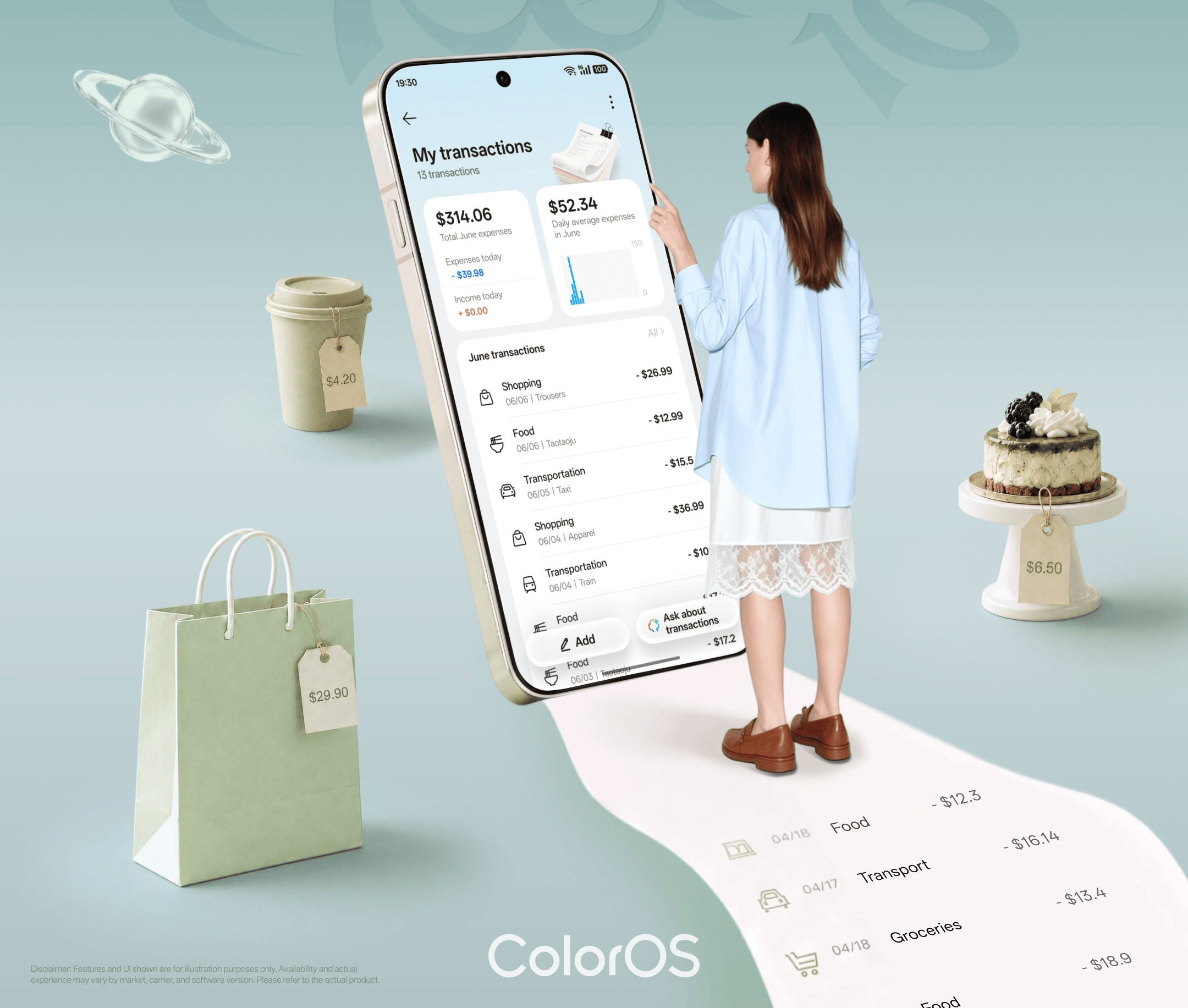
I like the idea of having a place to check where my money is going without maintaining a separate spreadsheet. You can also set spending limits and look back at your transaction history.
AI Recorder and AI Summary are useful in a different way. When I record a conversation or discussion, I might need to revisit a specific detail later. Listening to the whole recording again can be a pain, especially when it’s a long one. Transcription and summaries give me another way to find the information I need.
These features make sense when I think about the small tasks that fill up a day. Sometimes, saving a few minutes here and there is all I need from a software feature.
Month 5: Giving My Photos a Second Chance
As someone who spends a lot of time taking photos, I tend to keep images even when the original shot isn’t quite right. Maybe there’s a reflection in the way, someone has moved at the wrong moment, or the photo looks a little softer than I’d like.

That’s where the Gallery tools of OPPO’s ColorOS 16 come in. AI Eraser is useful when I want to remove an unwanted object from a photo. Reflection Remover can help when I’m shooting through glass, while AI Unblur can improve images that lack sharpness. Clarity Enhancer is another option when I want to bring out more detail.
Then there’s AI Perfect Shot, which can help fix certain expressions in group or solo photos, and Portrait Glow, which gives me another way to adjust the lighting on a portrait.

I like having these tools right inside the Gallery app. If I spot a small issue, I can try fixing it without opening a separate editing app. That’s convenient, especially when I’m going through photos and deciding which ones are worth sharing.
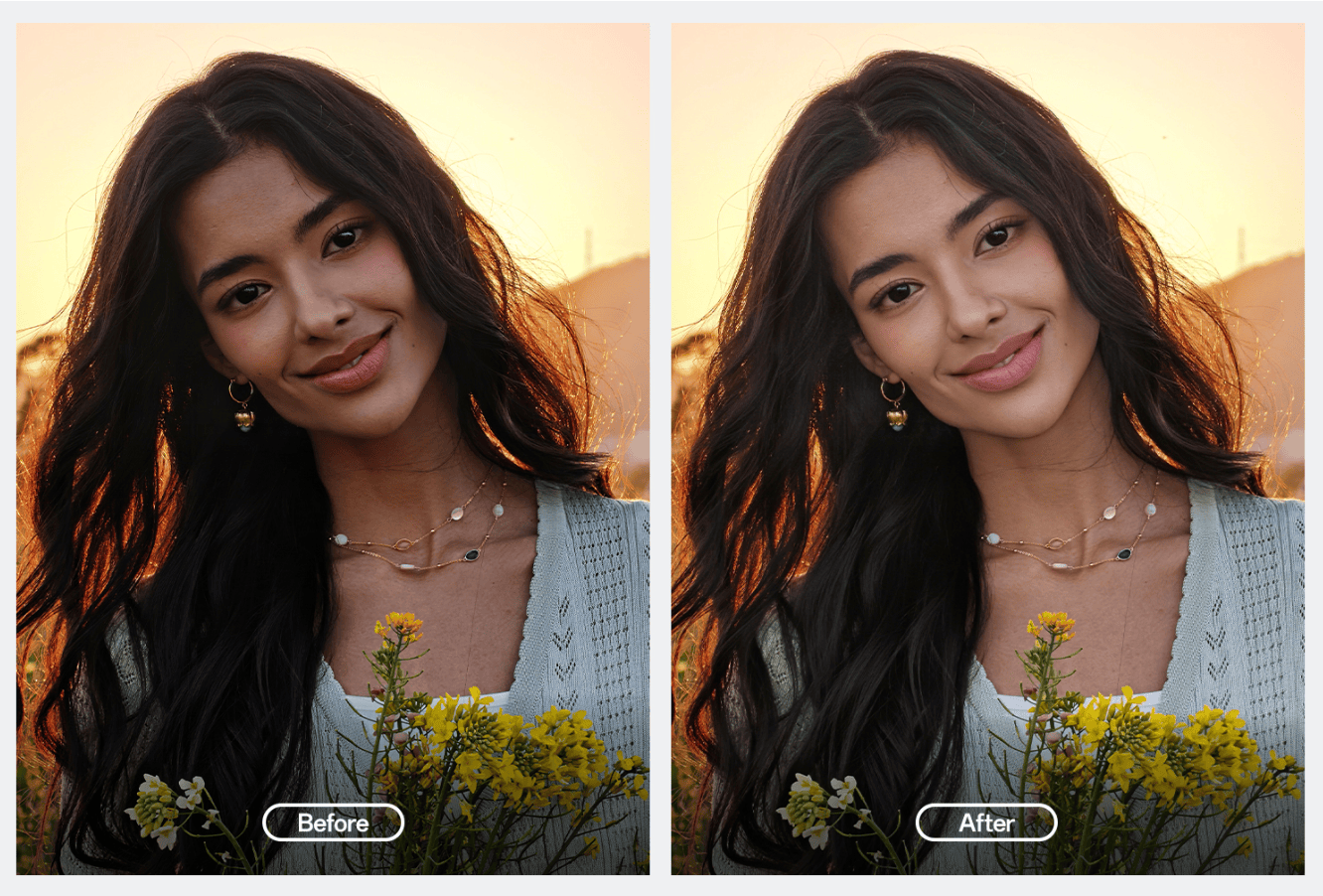
Of course, these tools have their limits. An edit can look unnatural if the software gets something wrong, and no amount of processing can turn every bad shot into a good one. I’d still rather get the photo right when I take it.
But having the option to fix a reflection or remove a distracting object later is useful. It’s the kind of thing I appreciate when I need it, even if I don’t use it every day.
AI Remix Collage is another addition I can see myself using. It makes it easier to put several photos together, which can come in handy when I’m sharing pictures from a trip or putting together a small collection of moments for my Instagram story.
By the fifth month, I had a better sense of which editing tools were worth keeping in mind.
Month 6: The Little Things I Kept Coming Back To
Looking back at the last six months, I realized that the features I kept coming back to weren’t always the ones that seemed most exciting when I first tried them.
Customization is still a big part of why I enjoy ColorOS. I like being able to change the home screen and lock screen to suit my preferences, and the adaptive Flux icons help everything feel like it belongs together. It’s the sort of detail I notice when I change a theme or rearrange my home screen.
The animations are another part of the experience I continue to appreciate. App opening and closing, gesture navigation, opening the sidebar, moving between windows, and every little interaction feels natural and incredibly smooth. The interface also has a consistent visual style, which matters a lot to me.

The monthly updates deserve a mention, too. I enjoy seeing OPPO add new features and make changes to the interface after launch. Some updates give me something new to try, while others make familiar parts of the software feel a little more complete.
Mind Space is one of the features that has stayed on my radar, especially with Mind Pilot now part of the experience. The Photos tools are useful when I need them, and AI Bill Manager has a clear purpose for anyone who wants to keep a closer eye on spending.
O+ Connect is worth mentioning as well. It helps with transferring files between my Mac and my phone, which has been very handy for me, as I don’t have to rely on a cable.

ColorOS has also expanded its sharing options through OPPO Share and Quick Share, including support for sharing with Apple devices on supported phones. Sharing files and photos has never been easier for me.

After six months, I have a very clear idea of what I value in ColorOS. I enjoy the cohesive interface, the smooth animations, and the freedom to customize the phone. I also appreciate features that fit into my routine without asking me to change the way I use my phone. And that’s what made the experience stick with me.
So, What Happens When OPPO’s ColorOS 17 Arrives?
After spending six months getting used to ColorOS 16, I’m curious to see what changes with ColorOS 17. OPPO is continuing with its Fluid Design approach, along with changes to interactions, personalization, and performance. I’m particularly interested in seeing how the new design affects the parts of the interface I use every day.
The animations and transitions are already a big part of what I enjoy about ColorOS. I want to see how OPPO builds on them while keeping the interface consistent. The same goes for personalization. Flux Home Screen has become one of my favorite parts of the software, and I’d like to see more ways to make the phone feel like my own.
Performance matters just as much. A phone’s software is something I interact with constantly, whether I’m opening apps, switching between them, or moving around the interface. Those everyday moments shape the experience far more than a feature I might use once in a while.
ColorOS 16 has given me plenty to appreciate over the past six months. Mind Space, the Gallery tools, and the other additions have their place, but the experience as a whole is what kept me interested. The smooth animations, clean interface, and regular updates all play a part.
I’m looking forward to seeing how ColorOS 17 develops from here. After all, the software I appreciate most is the kind that feels natural to use long after the first few days.