
How to Share Your Screen on WhatsApp: A Step-by-Step Guide for iPhone and Android Users

Main Image
  • Like
  • Comment
  • Share

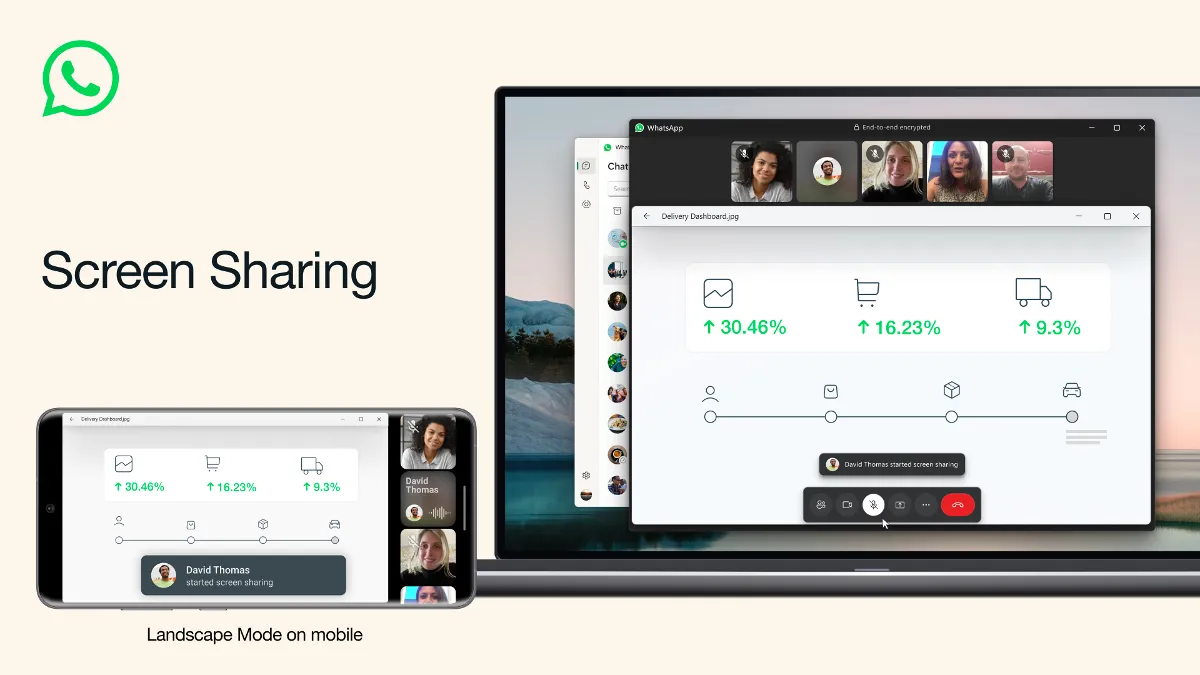
WhatsApp is the world’s most used messaging app. It does more than just chat with friends – you can share files and even send money. WhatsApp keeps adding new features to make it better. One cool feature is screen sharing, where you can show your phone’s screen during a video call. Here’s how to do it on iPhone and Android.

How To share your screen on WhatsApp:

  1. Start a video call with someone.
  2. When they answer, tap the Share Screen icon at the bottom.
  3. Then, press Start Broadcast (on iPhone).
  4. On Android, tap Continue (if it’s your first time), then Start Now.
  5. To stop sharing, tap Stop Sharing.

Remember, when you share your screen, everything on it is visible to the other person, including notifications. Use Do Not Disturb mode to hide notifications.

But, if you’re using WhatsApp on your computer, you can’t share your screen on WhatsApp Web or Mac. But you can do it on WhatsApp Desktop for Windows.

How to Share Your Screen on WhatsApp Desktop for Windows:

  1. Open WhatsApp on your PC.
  2. Scan the QR code on your phone to connect WhatsApp.
  3. Start a chat and begin a video call.
  4. Click the Share Screen icon.
  5. Choose whether to share a window or your whole screen.
  6. Select Display and click OK to start sharing.
  7. To stop, click Stop Sharing.

That’s how you share your screen on WhatsApp!

Aryan VyasAryan Vyas
Aryan is the youngest tech enthusiast at Smartprix, with a deep passion for technology, automobiles, cricket, and Bollywood. He is a meticulous researcher and writer who write on a wide range of tech topics, including smartphones, laptops, wearables, and smart home device.


Related Articles

Imagevivo X500 Pro Might Ditch the 200MP 1/1.4-inch Periscope for a 64MP 1/2-inch One

Reliable Chinese tipster Digital Chat Station has shared early engineering details about the vivo X500 Pro, and one of the biggest changes is the telephoto camera. According to the leak, vivo is currently testing the X500 Pro with a 64MP 1/2-inch 3X periscope camera instead of the large 200MP 1/1.4-inch periscope setup used on the …

ImageHow to transfer WhatsApp data from Android to Apple iOS via the ‘Move to iOS’ App

Gone are those days when Android and iPhone users could not exchange any form of data with each other. Now, Apple has announced a Move to ios data porting app that will help in transferring data between Apple and iOS. The feature will be available in WhatsApp’s Beta version and will roll out slowly and …

ImageHow to Use One WhatsApp Account on Two or More Phones: A Step-by-Step Guide

WhatsApp is one of the most widely used messaging apps in the world, with over 2 billion active users per month. Recently, the app has introduced a new feature that allows users to use the same account on more than one device. This is a great solution for those who want to use WhatsApp on …

ImageTap to Share Could Change How Android Users Share Files and Contacts

Google is working on a new Tap to Share feature for Android, and the latest leak shows how it is expected to work. The idea is simple. You bring two phones close together and either send files or share your contact details without going through multiple steps. It sits on top of Quick Share, which …

ImageWhatsApp Is Testing Notification Bubbles on Android

WhatsApp is now testing notification bubbles for Android users in its latest beta release. The new feature brings floating chat bubbles that stay on screen and let users reply to messages without fully opening the app. How It Works Once available, incoming messages from personal chats or groups can appear as small circular bubbles on …

Discuss

Be the first to leave a comment.